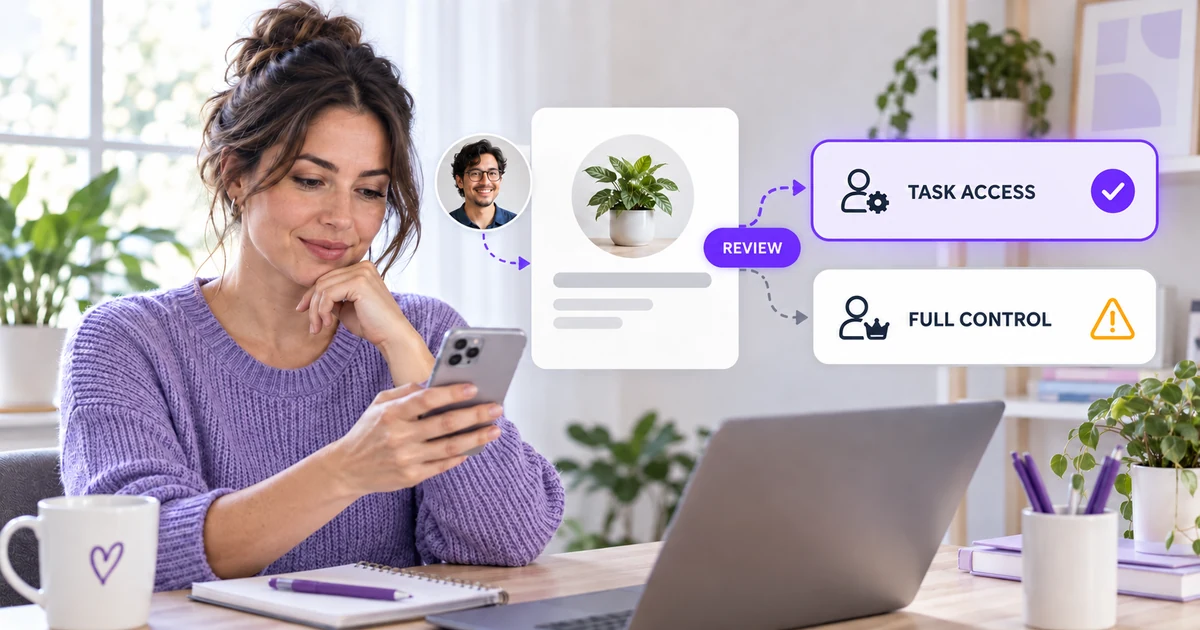
Giving a colleague, freelancer or agency access to your Facebook Page should be a permissions decision, not a password-sharing exercise. The safest approach is simple: decide what the person actually needs to do, give the narrowest access that supports that work, and set a date to review it.
Meta currently separates Page permissions into Facebook access and task access. Facebook access can include partial control or full control, while task access is designed for work completed through tools such as Meta Business Suite. The labels matter because full control is not merely “more editing.” It can include the ability to manage other people's access and, according to Meta's current documentation, potentially delete the Page.
This guide explains the choice, the invitation process and the follow-up checks without relying on an old “Page roles” tutorial. Facebook can move menu labels, so use the wording in your current Page settings if it differs slightly from the path shown here.
Table of contents
- Why Page access deserves a careful setup
- What you need before you start
- Facebook access vs task access
- How to give someone access
- What usually goes wrong
- How to review or remove access
- A compact access checklist
- Frequently asked questions
Why Page access deserves a careful setup
Most access problems start with a reasonable shortcut. A business owner wants help answering messages, so they give a contractor the broadest permission because it is quicker than comparing options. Months later, the contractor has moved on, the permission is still active, and nobody remembers why it was granted.
The better model is least privilege: give each person only the access needed for their current responsibilities. This makes ownership clearer, reduces accidental changes and makes offboarding much easier.
It also separates two things that are often confused:
- Account credentials identify an individual Facebook account.
- Page permissions authorize that individual to work on a business Page.
Never send your personal Facebook password to a teammate or service provider. A legitimate Page-access workflow lets each person use their own account. The same principle applies when you review Facebook performance in Meta Business Suite: shared work should be traceable to the people and tools that performed it.
What you need before you start
Before opening Page settings, write down the person's actual responsibilities. “Help with Facebook” is too vague. “Draft posts, reply to comments and review weekly insights” is specific enough to map to permissions.
You should also confirm:
- The correct person. Verify the profile or business identity before inviting it. Similar names and old accounts are easy to confuse.
- Who can approve access. Meta says only people with Facebook access with full control can give, edit or remove Page access.
- Where the Page is managed. A Page inside a Meta business portfolio may be assigned through Meta Business Suite rather than only through the Page's Facebook settings.
- How long the access is needed. A permanent employee and a six-week freelancer should not automatically receive the same review schedule.
If the person only needs to analyze content, clarify which reports they need. If they will create posts, decide whether they must also publish them. If they handle customer messages, agree on response boundaries before granting access.
Facebook access vs task access
Meta's current Page access overview describes two broad access routes.
Task access
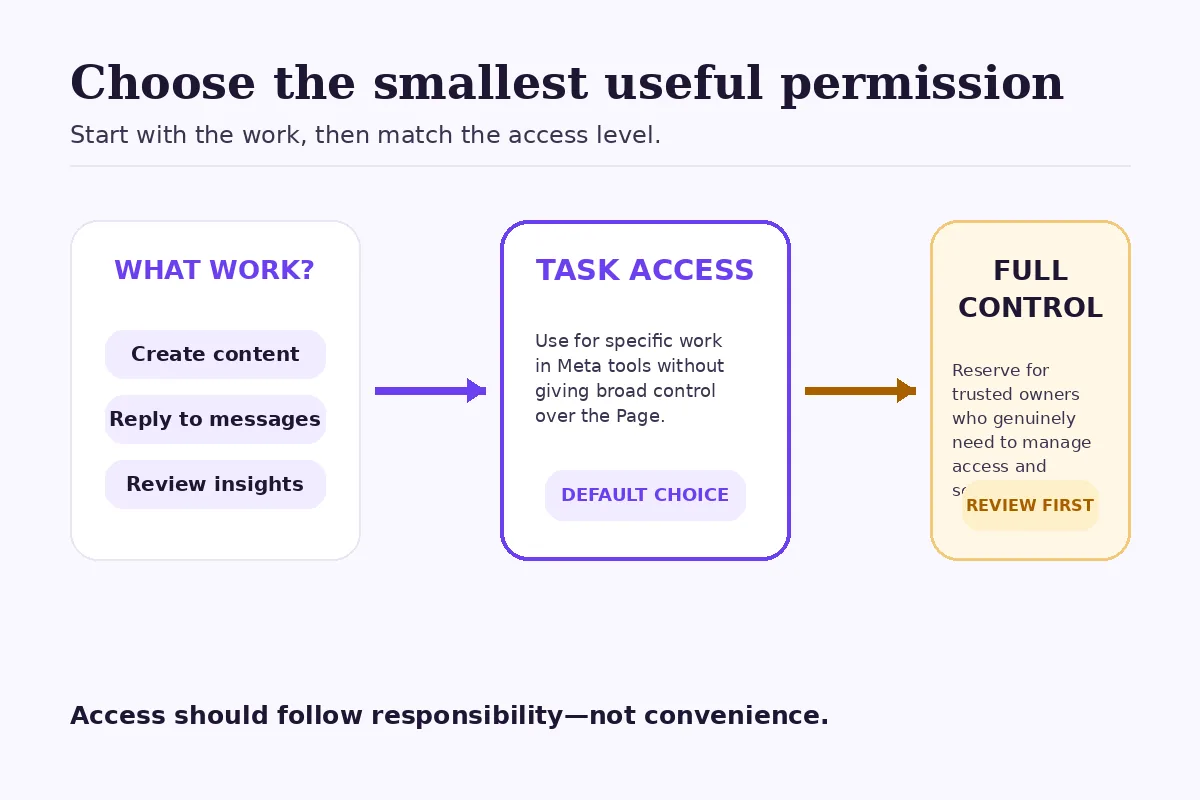
Task access is usually the cleaner starting point for a specialist who works in Meta's management tools. Depending on the permissions you assign, task access may cover content, messages and community activity, ads, or insights.
A person with task access does not manage the Page directly on Facebook in the same way as someone with Facebook access. That distinction is useful when a contractor needs to schedule content in Meta Business Suite or examine results but does not need broader control of the Page.
Facebook access with partial control
Facebook access lets a person switch into and manage the Page on Facebook. Partial control can cover operational work without handing over every high-risk setting.
Choose this route when the person's work genuinely requires acting as the Page inside Facebook, then enable only the relevant capabilities shown in the current settings.
Facebook access with full control
Full control should be rare. Meta warns that a person with full control can give other people access, remove people—including you—and delete the Page. In practical terms, this is an ownership-level permission.
Use it for a trusted co-owner or senior administrator who must manage access and essential settings. Do not use it simply because a person needs to post, answer messages or view insights.
How to give someone access
Meta maintains a current give, edit or remove Page access guide. The exact route can vary by device and by whether the Page belongs to a business portfolio, but the decision sequence should remain the same.
1. Open the Page access settings
Switch into the Page you manage, open Settings & privacy, then Settings, and look for Page setup or Page access. If your Page is managed within a business portfolio, open Meta Business Suite on desktop, choose Settings, then find the Page under the relevant profiles or assets area.
If you cannot see an option to add or edit people, first check your own permission. Meta provides a separate guide to viewing your Page access.
2. Choose the access route before choosing the person
Select task access when the role can be completed in Meta's management tools. Select Facebook access only when the person needs to work as the Page on Facebook.
This order matters. When people search for a name first and think about permissions second, they are more likely to accept a broad default without evaluating it.
3. Select the individual carefully
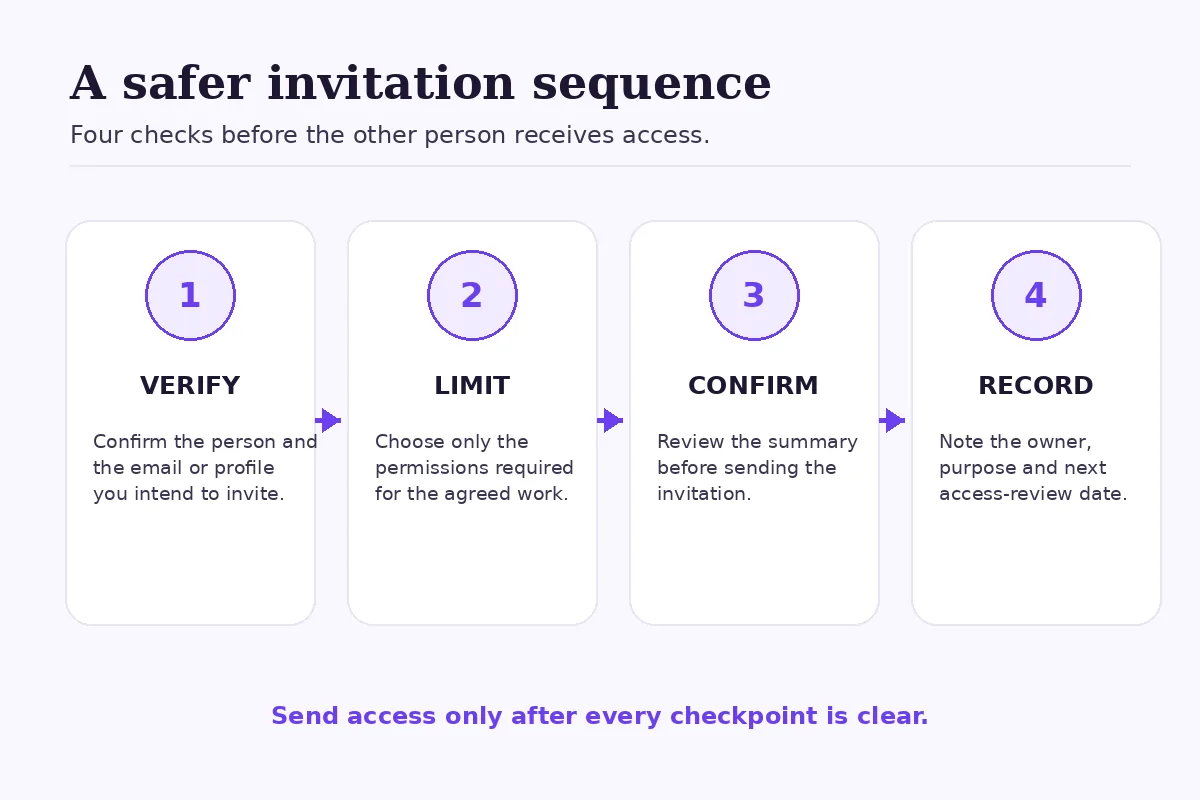
Search for the correct profile or enter the identifier requested by the current interface. Compare the profile image and other available details. If there is any doubt, ask the person to confirm the exact profile before continuing.
For a business portfolio, make sure you are assigning the Page to the intended person or partner account—not adding an unrelated asset or inviting a personal contact by mistake.
4. Enable only the necessary capabilities
Map each permission to a responsibility. Someone who drafts posts may need content access. A customer-care teammate may need messages and community activity. A reporting specialist may need insights but not publishing.
Do not enable full control as a catch-all. If the interface presents a confirmation explaining what full control includes, stop and read it. That warning is part of the security decision, not a formality.
5. Review and send the invitation
Check the person's identity, the Page, the access type and every enabled capability. Meta may ask you to re-enter your password as a security step. Send the invitation only after the summary matches the agreed role.
The recipient must accept the invitation before access becomes active. Ask them to confirm once it is accepted, then test only the tasks they are supposed to perform.
A hypothetical example: a bakery and a freelance editor
Imagine a bakery hiring a freelance editor for eight weeks. The editor will prepare Reels, write captions and schedule approved posts. The owner will continue handling messages, ads and Page settings.
In this hypothetical situation, task access for content work is a more proportionate starting point than full control. The agreement can name the exact tasks, the end date and the person responsible for removing access. If the editor later needs a capability they do not have, the owner can review that specific request instead of granting broad access in advance.
The same logic applies when choosing content formats. A permission should match the work just as a format should match the goal. Our comparison of Facebook Reels, Stories and feed posts can help define that content responsibility before you invite a creator.
What usually goes wrong
Treating full control as the normal option
Full control is easy to understand, so it can feel simpler than a tailored setup. But simplicity at invitation time creates risk later. Reserve it for people who truly need ownership-level authority.
Inviting the wrong profile
Names and profile photos can be similar. Verify the destination before sending the invitation, particularly when working with external freelancers or agencies.
Assuming an invitation is active immediately
An invitation can remain pending. Until it is accepted, the person may not be able to perform the assigned work. Check the status instead of repeatedly expanding their permissions.
Forgetting offboarding
Removing someone from a chat or project board does not remove their Facebook Page access. Access must be reviewed in the Page or business settings.
Giving access without a written scope
Permissions cannot replace operational rules. Define who can publish, who approves sensitive posts, who responds to complaints and who can spend money. If the work includes promotion, clarify the difference between organic publishing and paid distribution. Our boosted posts versus Ads Manager guide explains that boundary.
How to review or remove access
Open the same Page access or business settings area used for the invitation. Review each active person and their current capabilities. Meta's access guide explains how a person with full control can edit or remove access.
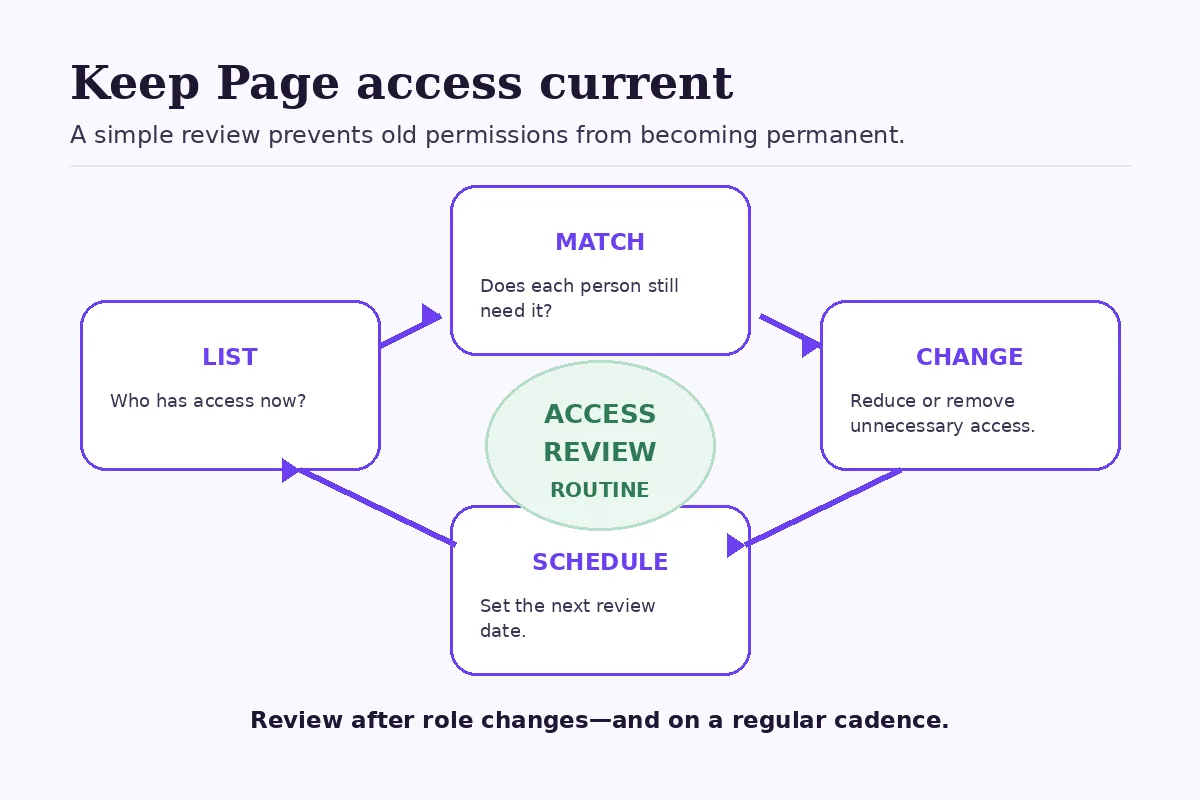
Use a simple review routine:
- List: Who currently has access?
- Match: Does each person still perform the role that justified it?
- Change: Can broad access be reduced, or should inactive access be removed?
- Schedule: When will the next review happen?
Run the review whenever someone changes roles, a contract ends, an agency relationship changes, or you suspect an account problem. A regular quarterly review is also a practical habit for many small teams, although your cadence should reflect your staff turnover and risk.
If someone leaves unexpectedly, remove their access promptly and review the remaining people. Also secure the relevant personal accounts with strong, unique passwords and multi-factor authentication. If you believe the Page itself was compromised, use Meta's official recovery process rather than accepting help from unverified contacts.
FastSocialz team note
Good access control supports better content operations because it clarifies who can create, approve and measure each post. It does not guarantee reach or engagement; it simply removes avoidable confusion from the workflow.
If your team has a clear publishing process and wants additional support around Facebook audience activity, see FastSocialz Facebook Growth. FastSocialz does not require your social-account password. As with any growth service, results vary by account, content, audience and platform conditions.
A compact access checklist
Before sending an invitation:
- Confirm the correct person or business identity.
- Write down the exact tasks they will perform.
- Prefer task access for work that can stay inside Meta's management tools.
- Use Facebook access only when the person needs to act as the Page on Facebook.
- Reserve full control for trusted owners or administrators.
- Review every enabled capability before sending.
- Confirm that the recipient accepts the invitation.
- Record the purpose, owner and next review date.
- Remove access when the role ends.
Final thoughts
The safest Facebook Page setup is not the one with the most permissions. It is the one where every permission has a current owner, a clear purpose and a review date.
Start with the work. Choose the smallest useful access level. Then maintain the list as your team changes. That small discipline is far easier than untangling unnecessary full control after a relationship ends.
Sources
Questions, answered plainly
Frequently asked questions
What is the difference between Facebook access and task access?
Facebook access lets a person switch into and manage the Page on Facebook, with partial or full control depending on the setup. Task access is for assigned work through tools such as Meta Business Suite.
Can someone with task access give other people access?
No. Meta says only people with Facebook access with full control can give, edit or remove Page access.
Should an agency receive full control of my Facebook Page?
Not by default. Give an agency only the permissions needed for the agreed work. Full control is appropriate only when ownership-level functions are genuinely required.
Why can’t I add someone to my Facebook Page?
Check whether your own account has Facebook access with full control, confirm the correct Page or business portfolio, and verify the intended person’s invitation details.
How often should I review Facebook Page access?
Review it after staffing, contractor or agency changes and whenever there is a security concern. Many teams also use a recurring quarterly review.
Keep reading
Related guides

How to Add Chapters to YouTube Videos
A practical guide to planning, formatting, publishing, and checking YouTube chapters without turning your description into a mess.

YouTube Impressions Up but CTR Down? 7 Checks Before You Change Your Thumbnail
A falling click-through rate is not automatically bad when YouTube is showing your video to more people. Use these seven checks before changing the thumbnail.

YouTube Dynamic Thumbnails vs A/B Testing: What Creators Should Know
YouTube has announced dynamic thumbnails and video-cut testing, but its existing A/B tool works differently. Here is what each option tests and what creators can do now.