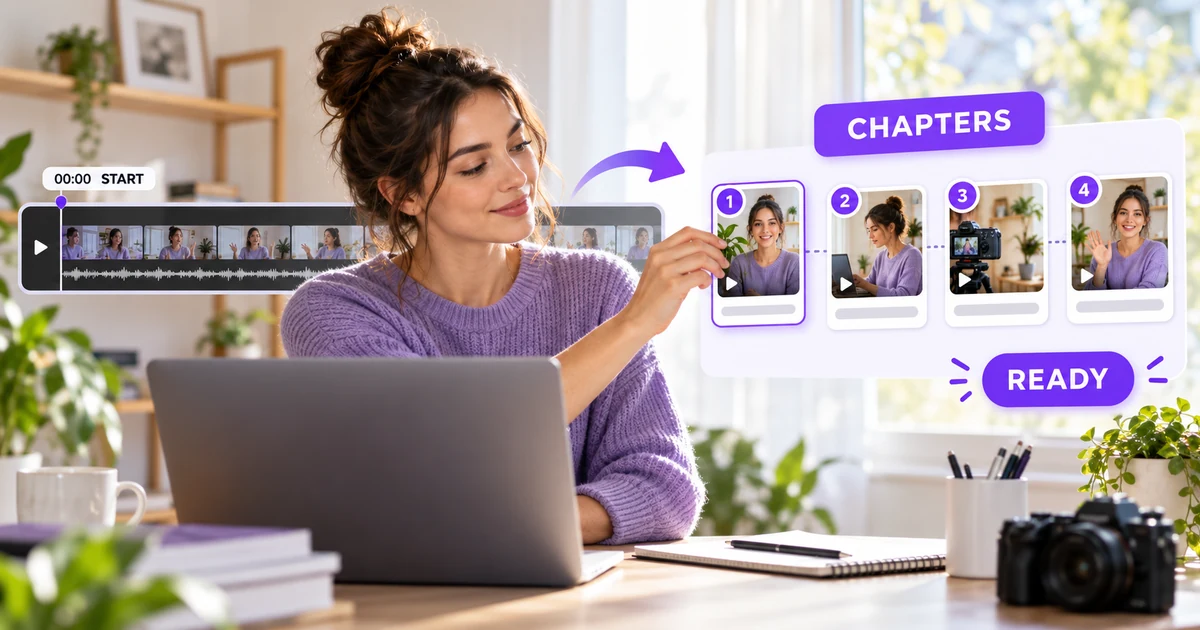
You’ve finished a useful video, uploaded it, and written the description. Then you notice the progress bar is still one uninterrupted line. Viewers can scrub through it, but they can’t jump straight to the setup, demonstration, comparison, or answer they need.
That’s what YouTube chapters solve. They divide a video into labeled sections with individual previews, helping viewers navigate and revisit specific parts. You can add chapters manually with timestamps in the description or allow YouTube to generate them automatically when a video is eligible.
The setup is simple, but it’s also unforgiving. One missing 00:00, too few timestamps, or one section shorter than 10 seconds can stop the manual chapter list from appearing. This guide walks through the complete workflow and shows how to diagnose the common failures without guessing.
Why chapters are worth adding
YouTube describes video chapters as sections that add information and context while making parts of a video easier to rewatch. That matters most when a video serves several needs at once: a tutorial with setup and troubleshooting, an interview with multiple topics, a product walkthrough, or a long-form explanation.
Chapters aren’t a promise of higher rankings, more views, or longer watch time. Their clearest benefit is usability. Someone who arrives for one answer can find it without dragging the playhead back and forth. Someone returning later can resume at the section they remember.
They also force useful editorial discipline. If you can’t name the major sections in a video, the structure may be doing too many things at once. A chapter list makes that visible before you publish.
YouTube also recommends chapters as a way to help viewers skip to important parts of longer videos. Keep that purpose in mind. A chapter title should orient a person, not squeeze in every possible keyword.
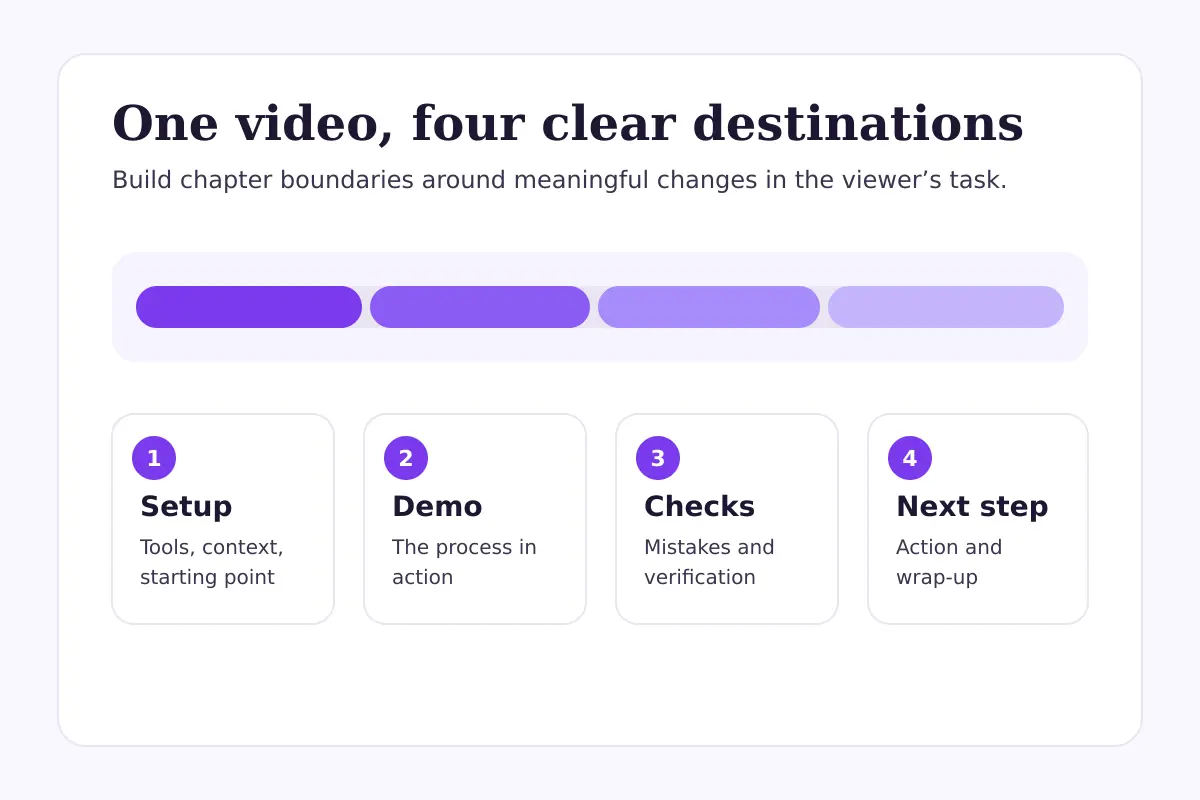
Chapters turn one long timeline into a navigable sequence of useful sections.
What you need before you start
Prepare the final video, not an early edit. If you trim the intro, insert a sponsor segment, or change the cut after writing timestamps, every later marker can shift.
You’ll need:
- access to the video in YouTube Studio;
- the final uploaded cut or a timeline that matches it exactly;
- at least three meaningful sections;
- a way to note precise start times;
- access to YouTube’s Advanced features if chapters aren’t currently available on the channel.
YouTube’s published rules for manual chapters are specific: the first timestamp must start at 00:00, the list must contain at least three timestamps in ascending order, and every chapter must run for at least 10 seconds. Manual timestamps override automatic chapters for that video.
Don’t treat the 10-second minimum as a design target. A sequence of tiny 10-second chapters usually creates more friction than clarity. Use the minimum as a validation rule, then choose section boundaries based on the actual topic.
How to add YouTube chapters step by step
1. Map the real sections in the finished video
Watch the final upload and mark the moments when the viewer’s task changes. Good boundaries often occur when you move from explanation to demonstration, start a new question, compare another option, or begin troubleshooting.
Avoid creating a chapter for every minor beat. A 14-minute tutorial might need six useful chapters, not 25 labels that compete for attention.
For each section, write down its exact start time. Use the timestamp visible in the player or editing timeline rather than estimating from your script.
2. Turn those boundaries into viewer-facing titles
Chapter titles should tell viewers what happens next. “Camera settings for indoor light” is more useful than “Part three.” “Fixing muddy audio” is clearer than “More tips.”
Keep the wording concise because chapter labels appear around the player and in the description. You don’t need identical grammar on every line, but the list should feel consistent.
A practical title answers one of these questions:
- What task starts here?
- What question gets answered?
- What example is being shown?
- What decision is the viewer making?
3. Format the timestamp block correctly
Place each timestamp and its title on its own line in the video description. A clean block looks like this:
00:00 Introduction
00:38 What you need
02:10 Camera setup
05:45 Lighting demonstration
09:20 Common mistakes
12:15 Final checklist
The times move forward, the list starts at 00:00, there are more than three timestamps, and every gap is longer than 10 seconds.
For a video longer than an hour, use the same colon-based structure with an hours field, such as 1:02:15. Don’t use periods or semicolons as separators.
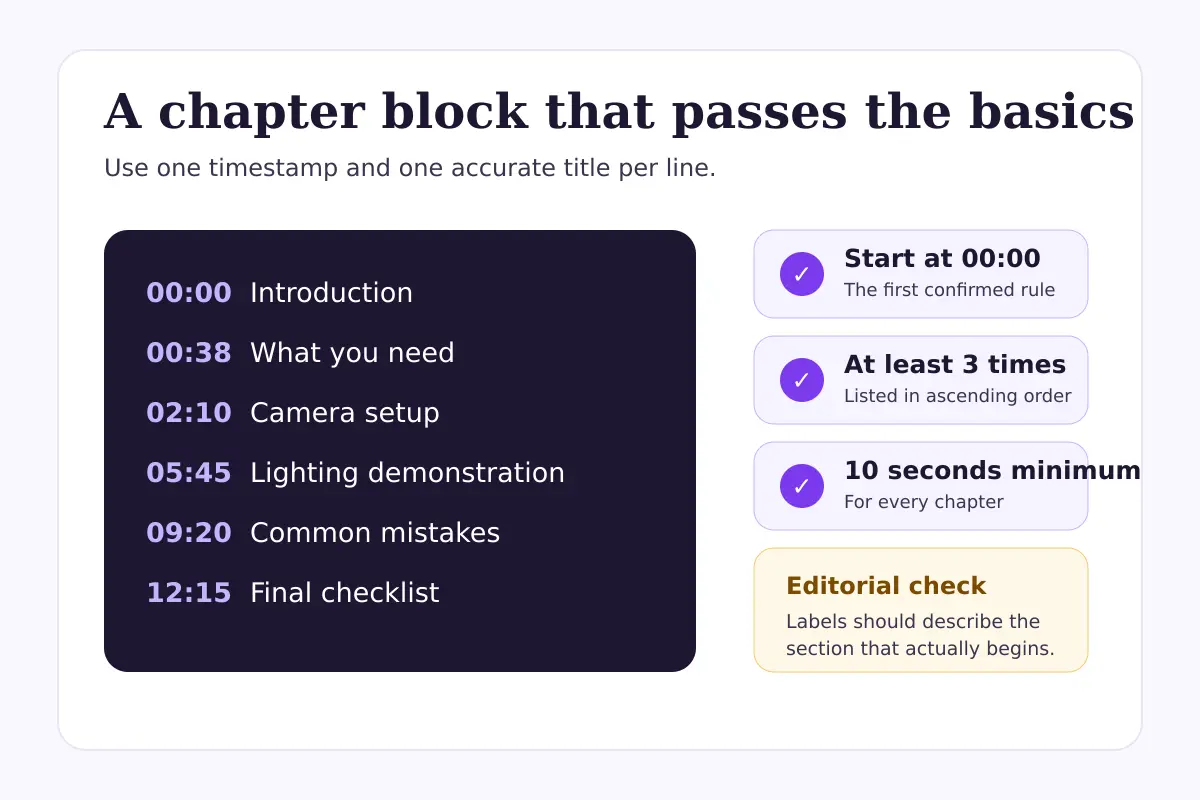
A valid chapter block starts at 00:00, follows the video’s order, and gives each section room to exist.
4. Add the list in YouTube Studio
Sign in to YouTube Studio, choose Content, and open the video you want to edit. Paste the timestamp block into the Description field, then save the video.
Manual chapters can coexist with other description copy. Keep the chapter block visually separate so it’s easy to scan and edit later. The first lines of a description are valuable context for viewers, so you don’t have to put timestamps above the opening summary unless that organization works for the video.
5. Verify the published result as a viewer
Open the public or unlisted watch page after saving. Look for divisions in the progress bar and move across them to confirm the titles and boundaries.
Check the description too. Every timestamp should be clickable, correctly labeled, and connected to the right moment. Test at least one mobile view when the video is important, because long labels can feel very different on a smaller screen.
If the chapters don’t appear immediately, don’t rewrite everything at once. First compare the block against the four confirmed rules: 00:00, at least three timestamps, ascending order, and a minimum of 10 seconds for every chapter.
A realistic chapter example
Imagine a hypothetical creator publishing a 16-minute tutorial about photographing handmade products with a phone. The video covers preparation, lighting, camera position, editing, and exporting.
A weak chapter list might read:
00:00 Intro
01:12 Step 1
04:05 Step 2
08:40 Tips
12:55 More tips
The format may pass, but the labels don’t help someone choose a section. A stronger version could be:
00:00 Photographing products with a phone
01:12 Prepare the background
04:05 Position one soft light
08:40 Lock focus and exposure
12:55 Edit without changing product color
15:10 Export the final image
The improvement isn’t keyword density. It’s information scent: each label tells the viewer what they’ll get after clicking.
One editorial caution: don’t title a section around an answer that never arrives. If the chapter says “best camera settings,” the section should actually provide settings and explain when they apply.
Manual versus automatic chapters
Manual chapters give you direct control over boundaries and labels. Automatic chapters ask YouTube to identify sections when the video is eligible. You can allow automatic chapters in a video’s settings under Show more, and YouTube says that setting is checked by default for new uploads.
Automatic chapters can save time, but YouTube says not every eligible video will receive them. Videos may also be ineligible when a channel has active strikes or the content may be inappropriate for some viewers.
Use manual chapters when structure and terminology matter: tutorials, interviews, product demonstrations, lessons, webinars, and videos whose sections follow a deliberate sequence. Automatic chapters can be a reasonable fallback for a broad back catalog you can’t review individually.
| Choose manual chapters when… | Consider automatic chapters when… |
|---|---|
| The order and labels need editorial control | You’re organizing a large older library |
| The video has clearly planned sections | The video’s structure is easy to detect |
| Precise navigation matters to the topic | You can review the generated result later |
| You expect to revise individual titles | You’re comfortable with system-generated labels |
Adding manual timestamps overrides automatic chapters on that video. That makes the choice reversible: you can begin with automatic chapters, then replace them with a curated list when a video deserves closer attention.
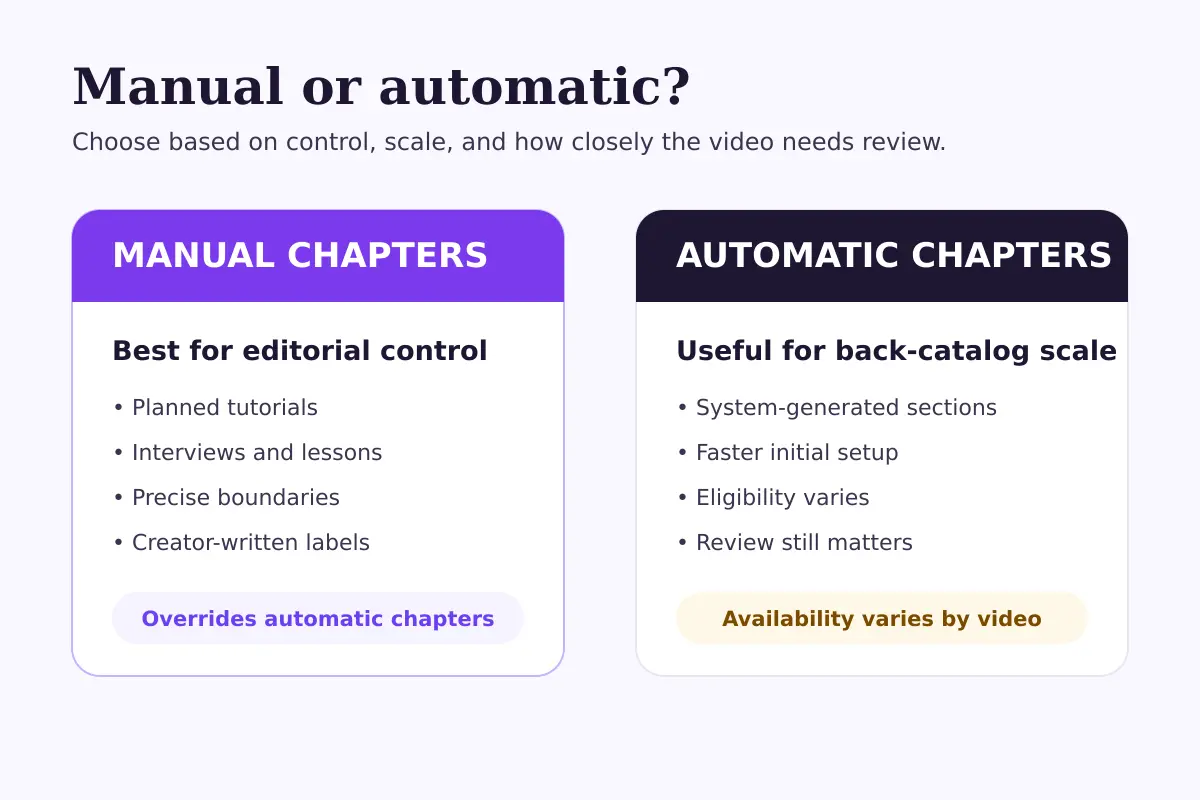
Manual chapters favor editorial control; automatic chapters favor scale but still need review.
What usually goes wrong
The first marker doesn’t start at 00:00
The opening chapter must begin at 00:00, even when the real introduction starts several seconds later. A first marker of 00:05 doesn’t meet YouTube’s stated requirement.
The list has fewer than three timestamps
Two timestamps are not enough. Add a third genuine section rather than inventing a meaningless label. If the video has only two natural sections, chapters may not be the right tool for it.
One chapter is shorter than 10 seconds
Check every gap, including the final chapter from its start time to the end of the video. Move the boundary or merge a tiny segment with the neighboring section.
The timestamps are out of order
A copied line can easily land in the wrong position. Sort the list from earliest to latest and compare it with the finished video.
The timestamps belong to an older edit
This is especially common when a creator writes chapters before removing pauses or adding an intro. Recheck the list after the final uploaded cut is ready.
The channel doesn’t have chapter access
YouTube says creators who don’t yet have access to chapters should apply for Advanced features. In YouTube Studio, review the channel’s feature eligibility before repeatedly changing a timestamp block that already follows the format rules.
Automatic chapters are allowed but don’t appear
The setting is permission, not a promise. YouTube states that not all videos are eligible and not all eligible videos will receive automatic chapters. If a particular video needs reliable navigation, create manual timestamps instead.
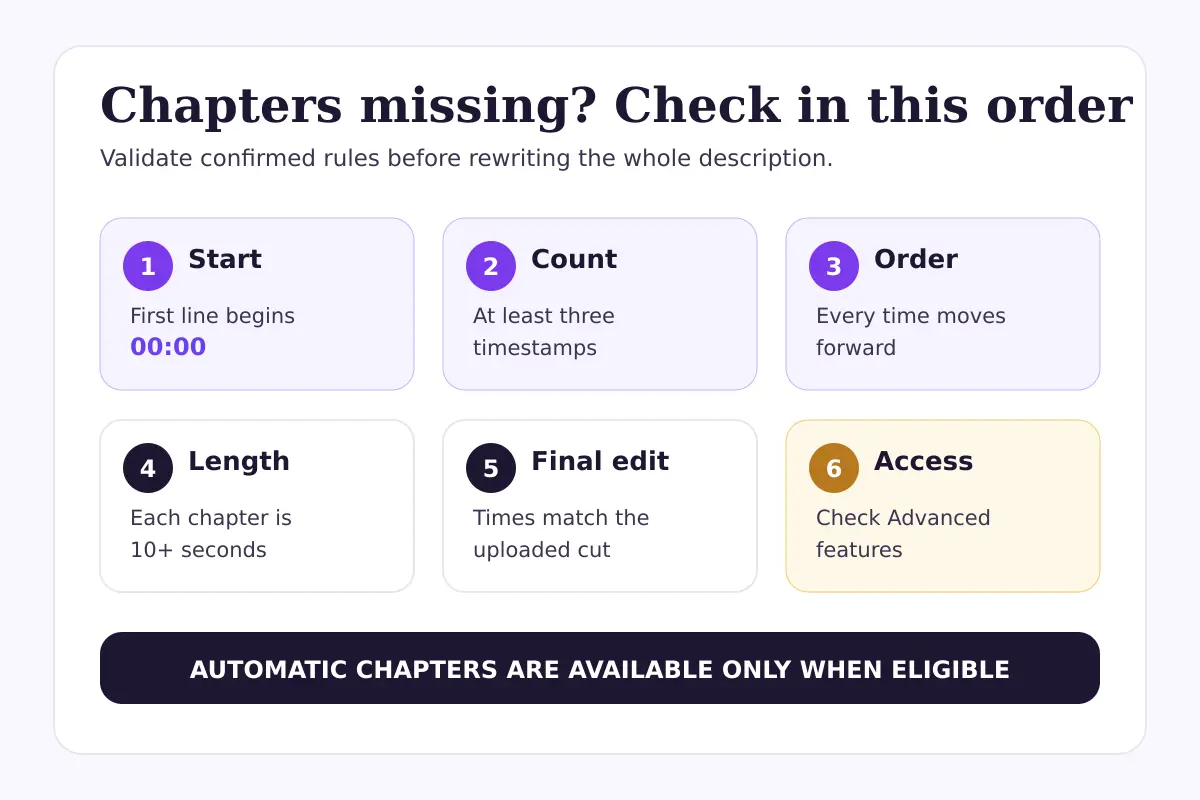
When chapters are missing, validate the confirmed format rules before changing titles or experimenting with the description.
FastSocialz team note: review the navigation, not just the format
A technically valid list can still be unhelpful. After the chapters appear, click through them in order and ask whether each title matches the content that begins there.
This is also a useful quality check for the video itself. If three consecutive chapter titles all mean roughly the same thing, the edit may contain repetition. If one section is half the runtime, it may need a clearer internal structure in the next video.
Chapters don’t replace a strong title, thumbnail, opening, or useful content. If you’re diagnosing how packaging affects discovery, our guide to YouTube impressions and click-through rate separates thumbnail questions from distribution context. If you’re reviewing newer thumbnail tools, see dynamic thumbnails versus A/B testing.
A compact publishing checklist
Before saving your chapter list:
- Use the final uploaded edit.
- Start the first line at
00:00. - Include at least three timestamps.
- Put timestamps in ascending order.
- Keep every chapter at least 10 seconds long.
- Give each line a clear, accurate title.
- Save the description in YouTube Studio.
- Open the watch page and test the progress bar.
- Check labels and jumps on mobile.
- Revisit the list if the video is edited or replaced.
If you want help growing a YouTube presence while keeping control of your channel credentials, explore FastSocialz YouTube growth services. No password is required, and results still depend on your content, audience fit, and platform conditions.
Final thoughts
The best chapter list feels almost invisible. It gives viewers just enough structure to find what they need without turning the description into an index of every sentence.
Start with the finished cut, mark genuine topic changes, and use titles that describe the next useful action or answer. Then verify the result like a viewer would. Five careful minutes at this stage can make a long video much easier to use—without pretending chapters can fix weak content or assure performance.
Related reading
- YouTube Impressions Up but CTR Down? 7 Checks Before You Change Your Thumbnail
- YouTube Dynamic Thumbnails vs A/B Testing: What Creators Should Know
Official sources
Questions, answered plainly
Frequently asked questions
What format should YouTube chapter timestamps use?
Put one timestamp and title on each line. Start with 00:00, list at least three timestamps in ascending order, and make every chapter at least 10 seconds long.
Can I add chapters after a YouTube video is published?
Yes. Open the published video in YouTube Studio, add the timestamp list to its description, save, and then verify the chapters on the watch page.
Do manual chapters replace automatic chapters?
Yes. YouTube says creator-added timestamps override automatic chapters for that video.
Why are my YouTube chapters not showing?
First check that the list starts at 00:00, contains at least three timestamps, follows ascending order, and keeps every chapter at least 10 seconds long. Also check whether the channel has access to Advanced features.
Will YouTube chapters increase views or watch time?
No outcome is assured. Chapters improve navigation and context, but discovery, retention, engagement, and growth still depend on the video and its audience.
Keep reading
Related guides
YouTube Shorts vs Long-Form Videos: Which Should You Use?
A practical, evidence-led way to decide when YouTube Shorts, long-form videos, or a deliberate mix makes sense for your channel.
YouTube Impressions Up but CTR Down? 7 Checks Before You Change Your Thumbnail
A falling click-through rate is not automatically bad when YouTube is showing your video to more people. Use these seven checks before changing the thumbnail.
YouTube Dynamic Thumbnails vs A/B Testing: What Creators Should Know
YouTube has announced dynamic thumbnails and video-cut testing, but its existing A/B tool works differently. Here is what each option tests and what creators can do now.