# How to Create a LinkedIn Newsletter: From Setup to First Edition
A practical LinkedIn newsletter walkthrough covering personal profiles, company Pages, the first edition, missing setup options and a manageable publishing plan.
- Published: 2026-11-12
- Author: FastSocialz Editorial Team
- Categories: LinkedIn Growth
- Reading time: 9 min
- Canonical: https://fastsocialz.com/blog/how-to-create-linkedin-newsletter
---
You have a topic people keep asking you about. A short post can answer one question, but you want room to explain the process, show an example and return to the subject next month.
A LinkedIn newsletter gives that work a recurring home. Readers can subscribe to a series instead of having to discover each article separately.
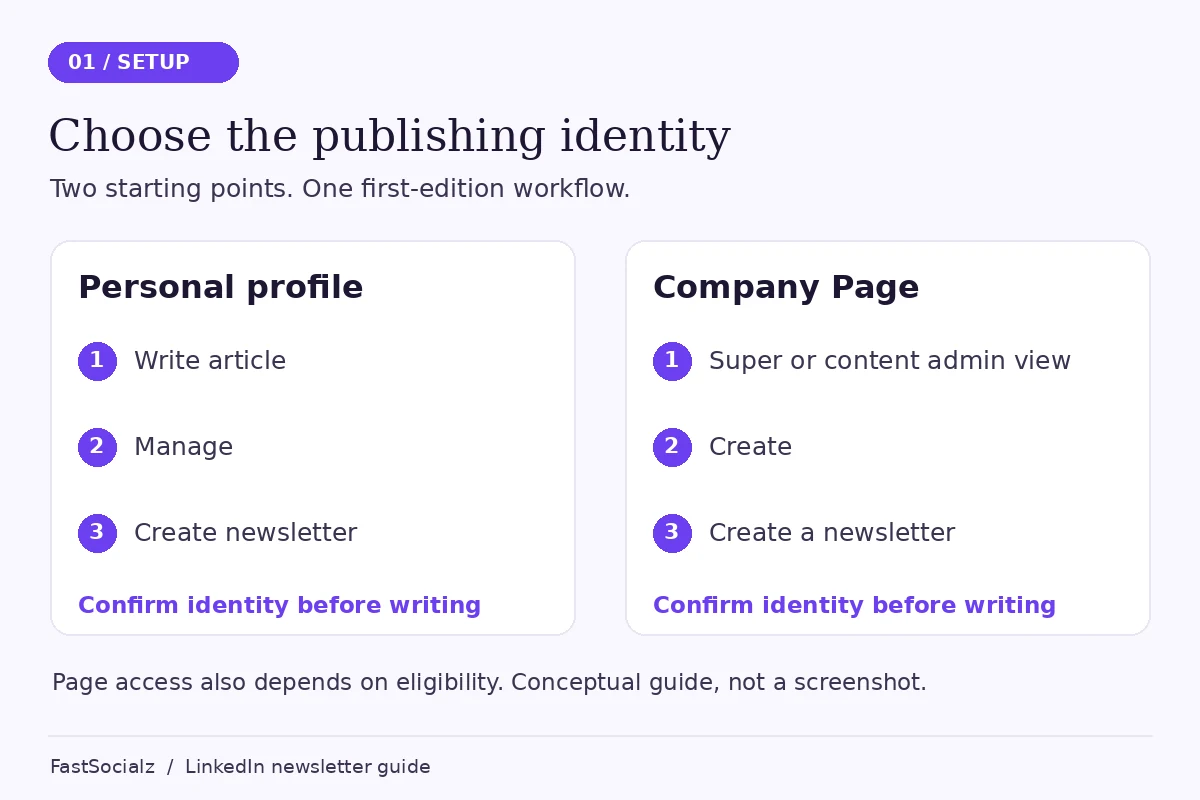
To create one from your personal profile, open LinkedIn in a desktop browser, choose **Write article**, then use **Manage → Create newsletter**. Add the newsletter details, select it in the editor and prepare your first edition. Company Pages have a separate creation route and additional eligibility requirements.
The setup is only part of the job. Before publishing, you also need a clear reader, a useful first edition and a second topic you can realistically deliver. Here's how to put those pieces together.
## Table of contents
1. [When a newsletter makes sense](#when-a-newsletter-makes-sense)
2. [Check these requirements before you start](#check-these-requirements-before-you-start)
3. [Create your newsletter and prepare the first edition](#create-your-newsletter-and-prepare-the-first-edition)
4. [A hypothetical launch plan](#a-hypothetical-launch-plan)
5. [What to check if something goes wrong](#what-to-check-if-something-goes-wrong)
6. [Give the second edition an owner and a deadline](#give-the-second-edition-an-owner-and-a-deadline)
7. [Review the first few editions without chasing a benchmark](#review-the-first-few-editions-without-chasing-a-benchmark)
8. [Your launch checklist](#your-launch-checklist)
9. [Frequently asked questions](#frequently-asked-questions)
10. [Start with an edition worth returning for](#start-with-an-edition-worth-returning-for)
## When a newsletter makes sense
A newsletter works well when you can keep answering related questions for the same professional audience. Think about the conversations you already have with customers, colleagues or peers. Is there a subject that deserves more than one explanation?
You don't need an elaborate editorial operation. You do need a reason for someone to want the next edition.
Write down the reader and the recurring problem before you choose a title. “Marketing insights” leaves almost everything open. “Helping independent retailers plan their next email campaign” gives you a much clearer brief.
If you have one strong idea and no natural follow-up, a standalone article may be enough. LinkedIn describes newsletters as a series of articles that people can subscribe to; the value comes from the continuing subject, rather than simply publishing something long. Its [newsletter overview](https://www.linkedin.com/help/linkedin/answer/a522525) explains how subscriptions and notifications fit that format.
## Check these requirements before you start
Use a desktop browser for this walkthrough. LinkedIn's [article-publishing documentation](https://www.linkedin.com/help/linkedin/answer/a522427) says the publishing feature isn't available in its mobile app.
Next, decide who will publish the newsletter.
| Publishing identity | What to check | A practical reason to choose it |
| --- | --- | --- |
| Your personal profile | LinkedIn says all members can create a newsletter. | The subject is closely tied to your own expertise and voice. |
| A company or organization Page | You need super admin or content admin access, and the Page must qualify. | The publication belongs to the organization and has an assigned editorial owner. |
According to LinkedIn's [newsletter access criteria](https://www.linkedin.com/help/linkedin/answer/a591266), Pages with more than 150 followers and/or connections are eligible for evaluation. LinkedIn also considers recent original content and good standing under its Professional Community Policies. Passing the audience threshold alone doesn't establish access.
That Page requirement shouldn't be applied to personal profiles. Older advice that tells every individual to reach a follower threshold first doesn't match the current access documentation.
Before opening the editor, prepare five things: the publication name, a short description, a realistic frequency, suitable artwork and an outline for edition one. Keep a separate copy of your draft so it can be reviewed without relying on the publishing screen.
## Create your newsletter and prepare the first edition
### 1. Choose one reader and a narrow promise
Finish this sentence in plain English: “This newsletter helps ___ make better decisions about ___.”
Then test it against three possible editions. If the topics require three completely different audiences, tighten the subject. A newsletter can expand later; it doesn't need to cover your entire professional life at launch.
Choose a name that still makes sense without its artwork. The description should explain what readers will learn and how often you intend to publish. Avoid filling it with a list of credentials or a broad promise to transform someone's career.
For frequency, look at the time you actually have. A thoughtful monthly edition is a reasonable starting point if research, examples and review won't fit into your week. That is an editorial choice, not a LinkedIn ranking rule.
### 2. Create the publication under the correct identity
For a personal newsletter, follow LinkedIn's [newsletter management instructions](https://www.linkedin.com/help/linkedin/answer/a524008):
1. From the desktop homepage, select **Write article**.
2. Check that the publishing identity is your profile.
3. Open **Manage** and choose **Create newsletter**.
4. Enter the title, description and frequency. Add an image if appropriate, then select **Done**.
5. Confirm that your newsletter is selected before drafting its first edition.
For a Page, LinkedIn documents a separate route: open its super admin or content admin view, choose **Create → Create a newsletter**, enter the publication details, upload an image and select **Done**. Use the official [Page newsletter guide](https://www.linkedin.com/help/linkedin/answer/a701399) if you're setting this up for a business.
Check the identity carefully. It's an easy detail to miss when you manage both your own profile and a company Page.
Choose the publishing identity first. This is a conceptual guide, not an interface screenshot.
### 3. Give edition one a useful job
Your first edition should demonstrate what a subscriber will get. A long welcome message that mostly describes future plans makes that harder to judge.
Pick one problem you can resolve within the article. Explain the decision, walk through the process and give the reader something small to try. A short introduction to the publication can sit around that useful material.
Keep these three pieces distinct:
- **Newsletter name:** the continuing publication readers subscribe to.
- **Edition headline:** the specific question this article answers.
- **Feed introduction:** the short explanation you share when publishing the edition.
The edition headline usually needs more detail than the publication name. Someone should understand why this particular installment is relevant without having read the previous ones.
### 4. Edit for someone reading between other tasks
Start with the practical question. Use headings that describe the decisions or steps, and keep the important answer close to the top. If a paragraph repeats the heading without adding anything, cut it.
An example should make the advice easier to apply. Use a clearly labelled hypothetical scenario when you don't have permission to share a real case. Don't add invented customer results to make the article sound more convincing.
Choose a cover that makes sense at a glance. A clear photograph, a simple illustration or one useful diagram can support the edition without repeating the entire headline.
Finally, check every link and read the draft aloud. Watch for sentences you have to restart. They often need a shorter opening or a more concrete verb.
### 5. Preview, then publish deliberately
In the article editor, use **Manage → Preview** to review the edition. LinkedIn also provides a **Share draft** option for review by signed-in members. Check the author identity, title, cover, headings and links before proceeding.
When ready, use **Next** and complete the publishing prompts. Add a feed introduction that explains the specific problem the edition addresses. One clear question is enough if you want to invite discussion.
LinkedIn says your connections and followers are invited to subscribe by notification after the first edition is published, by default. An invitation isn't a subscription or evidence that someone read the article. Check the live edition yourself and save its URL before announcing it elsewhere.
## A hypothetical launch plan
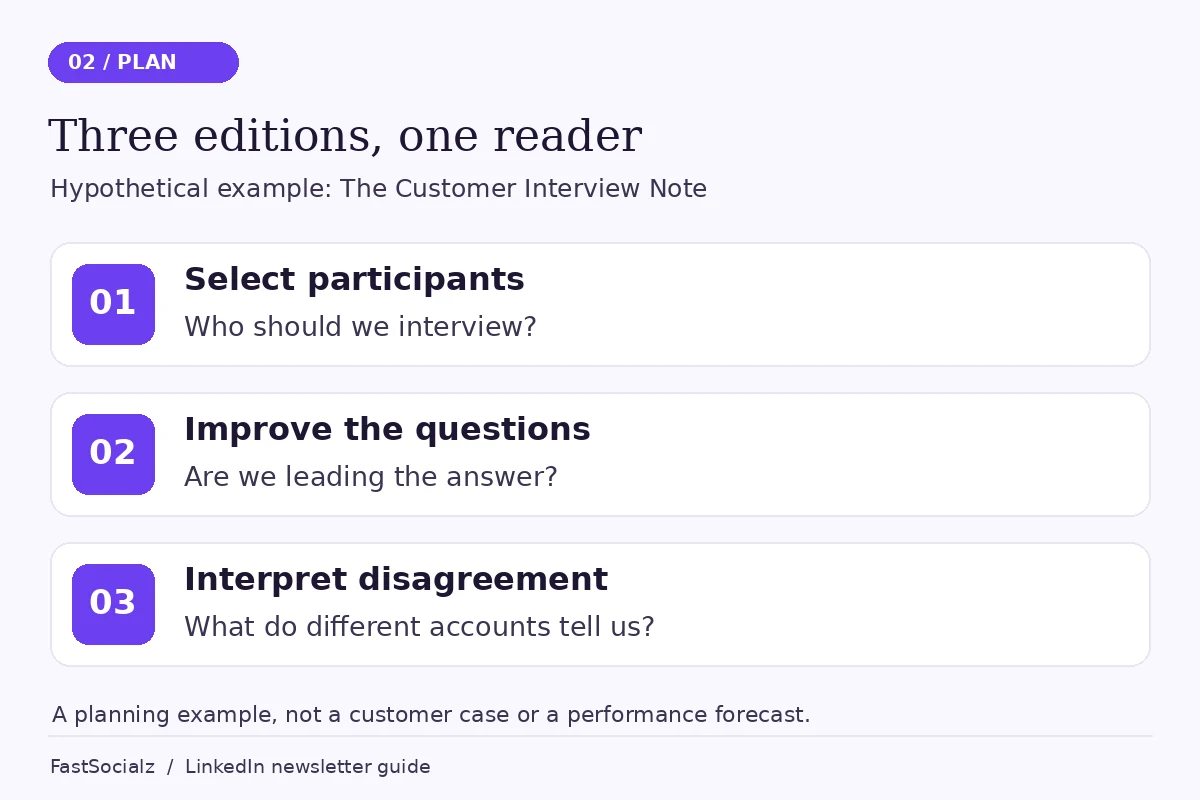
Consider a hypothetical product researcher who wants to write for people running customer interviews at small software companies. This is an illustrative plan, not a customer case or a prediction of results.
The publication is called **The Customer Interview Note**. Its description promises one practical lesson each month for planning interviews and making sense of what people say.
| Edition | Reader's question | Useful thing to include |
| --- | --- | --- |
| First | Who should we invite to our next interviews? | A short participant-selection worksheet |
| Second | Are our questions leading people toward an answer? | A hypothetical question rewritten three ways |
| Third | What should we do when interviewees disagree? | A simple way to separate observations from interpretations |
The first edition could explain how to choose participants before recruitment begins. It would show the worksheet, discuss one trade-off and end with a question about the reader's current selection process.
All three editions serve the same person. Each also stands on its own. That's a more useful starting point than committing to a weekly schedule before identifying the second topic.
Hypothetical example: three distinct editions for the same reader, with no projected results.
## What to check if something goes wrong
### You can't find “Create newsletter”
First, check that you're using the desktop article editor and have selected the intended publishing identity. Looking in the ordinary post composer won't follow the documented setup route.
For a Page, check your admin role and its eligibility. For a personal profile, don't assume a missing control means you need to buy followers or reach the Page threshold. Use LinkedIn Help while signed in if the documented route still doesn't work.
There is also a creation limit to consider: LinkedIn's management guide says authors can have up to five newsletters, with a two-week wait after creating or deleting one before creating another. Avoid deleting a publication just to experiment with its name.
### Your article doesn't appear in the newsletter you intended
Before publishing, inspect the selected publication in the editor. LinkedIn lets you choose between an individual article and a newsletter edition. A draft written in the wrong context needs checking before it goes live.
If you've already published, inspect the edition and newsletter page first. Don't delete and repost reflexively; establish what happened and consult the relevant editing guidance.
### The edition gets attention, but the next step is unclear
Read the ending as a new visitor. Does it ask one relevant question or present several unrelated requests? Does the author profile explain the same area of expertise?
If the wider issue is visibility without profile interest, use the separate guide to [LinkedIn impressions without profile views](https://fastsocialz.com/blog/linkedin-impressions-but-no-profile-views). Newsletter setup won't resolve a mismatch between your content and your profile.
## Give the second edition an owner and a deadline
Before launching, put the next edition on your calendar. For a team publication, name the person responsible for the draft, the reviewer and the person who can publish it.
Leave enough room for revisions. A newsletter about a technical or regulated subject may need more review than a personal reflection. Choose the cadence around that work.
Keep a small backlog of questions from real conversations. Record what someone needed to decide, rather than only the broad topic. “Customer research” is a category. “Who should we interview before changing this feature?” is a workable brief.
## Review the first few editions without chasing a benchmark
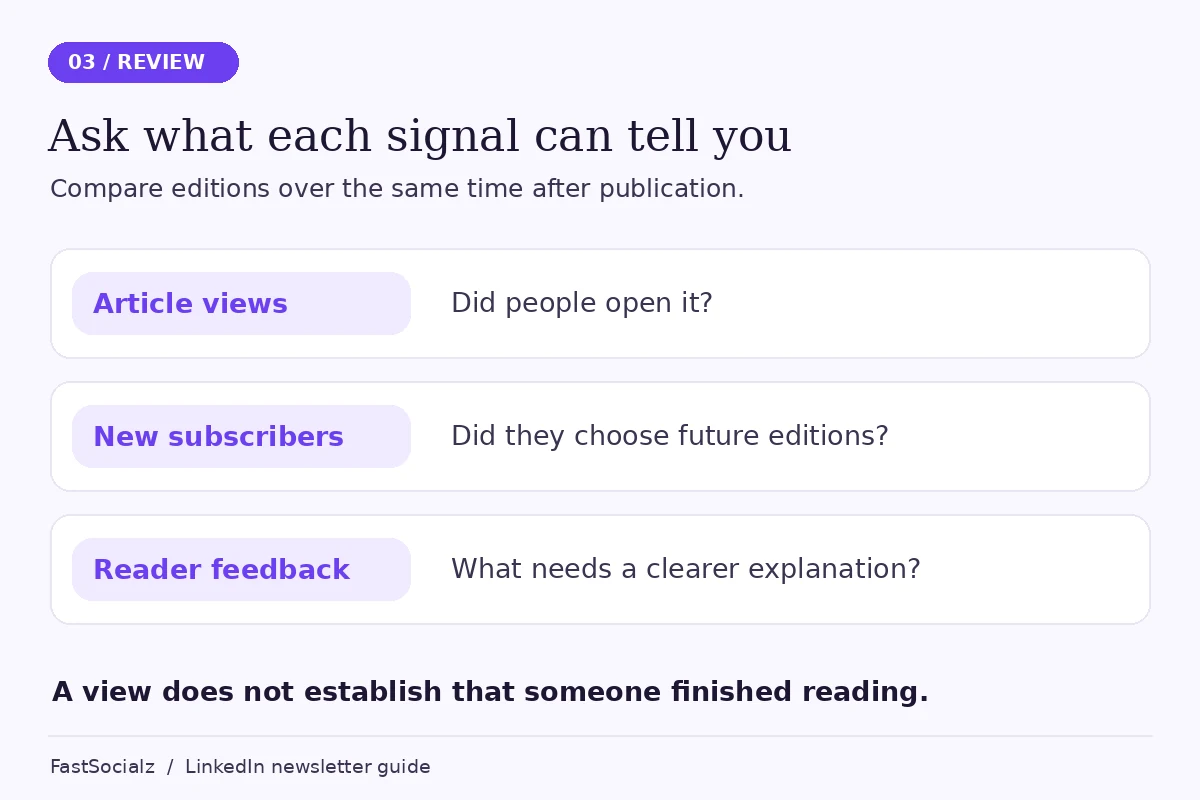
LinkedIn's [newsletter analytics guide](https://www.linkedin.com/help/linkedin/answer/a1658525) distinguishes impressions, article views and new subscribers. Impressions describe on-screen displays; article views track member clicks to view an edition on its article page or within a newsletter email. They don't establish that someone finished reading.
Use those signals to ask different questions:
| Signal | Question worth asking |
| --- | --- |
| Article views | Which subjects prompted people to open an edition? |
| New subscribers | Did people choose to receive future editions during this period? |
| Subscriber demographics | Does the audience resemble the professionals you're writing for? |
| Comments and direct feedback | Which points were useful, unclear or worth developing? |
Record the headline, subject, publishing date and how you shared each edition. Compare results over the same amount of time after publication. If one edition has been live for a month and another for two days, the totals aren't a fair comparison.
For the next edition, change one meaningful thing you can explain, such as a vague headline or an overly broad question. A small early sample can suggest what to explore; it doesn't establish a universal formula.
Compare equivalent periods and use each signal for the question it can answer.
## Your launch checklist
- One clearly defined reader and recurring subject.
- The correct personal profile or Page selected.
- Page permissions and access checked, where relevant.
- A specific first-edition headline and useful opening answer.
- Approved artwork, readable formatting and working links.
- Hypothetical examples labelled clearly.
- A preview reviewed before publication.
- A second topic, responsible writer and realistic deadline.
If you're also considering support for your broader LinkedIn presence, review [FastSocialz's LinkedIn growth service](https://fastsocialz.com/linkedin-growth). Keep that decision separate from the editorial work: your newsletter still needs useful ideas, careful review and a schedule you can maintain.
## Frequently asked questions
### Do I need 150 followers to create a LinkedIn newsletter?
Not for a personal profile under LinkedIn's current access guidance. The audience threshold applies to Pages being evaluated for newsletter access, alongside other criteria. It isn't the only Page requirement.
### Can I create a newsletter in the LinkedIn mobile app?
Use a desktop browser for setup and article writing. LinkedIn's article-publishing documentation says that feature isn't available in the mobile app.
### Is a LinkedIn newsletter different from an article?
A newsletter is the recurring publication. Each edition is an article within that series, and readers can subscribe to the newsletter for updates. A standalone article doesn't automatically become part of a newsletter.
### How often should I publish?
Choose a frequency you can sustain while doing the research and editing the topic needs. Monthly can be a sensible starting point, but it isn't a platform requirement or a promise of better performance.
## Start with an edition worth returning for
You don't need a year's worth of content before you begin. You need a clear subject, one useful edition and a credible plan for the next one.
Make the first article helpful on its own. Then use the questions it raises to decide what deserves a follow-up. A recurring publication becomes easier to plan when the next idea comes from a reader's actual problem.
## About the author
*Written by the FastSocialz Editorial Team. Explore more [LinkedIn growth articles](https://fastsocialz.com/blog/linkedin).*
## Related reading
- [LinkedIn Posts Getting Impressions but No Profile Views? 7 Fixes for 2026](https://fastsocialz.com/blog/linkedin-impressions-but-no-profile-views)
---
Canonical HTML page: https://fastsocialz.com/blog/how-to-create-linkedin-newsletter
## See also
- [Home](/index.md)
- [Pricing](/pricing.md)
- [How it works](/how-it-works.md)
- [Instagram growth](/instagram-growth.md)
- [TikTok growth](/tiktok-growth.md)
- [Facebook growth](/facebook-growth.md)
- [YouTube growth](/youtube-growth.md)
- [Spotify growth](/spotify-growth.md)
- [LinkedIn growth](/linkedin-growth.md)
- [About](/about.md)
- [Contact](/contact.md)
- [Affiliate](/affiliate.md)
- [Terms](/terms.md)
- [Privacy](/privacy.md)
- [Refunds](/refunds.md)
- [Site index for AI agents](/llms.txt)